
AI
How to edit videos with ChatGPT Codex and Remotion
A practical workflow for editing talking-head video with Codex and Remotion, including transcription, silence cuts, captions, approval checks, and copyable prompts.
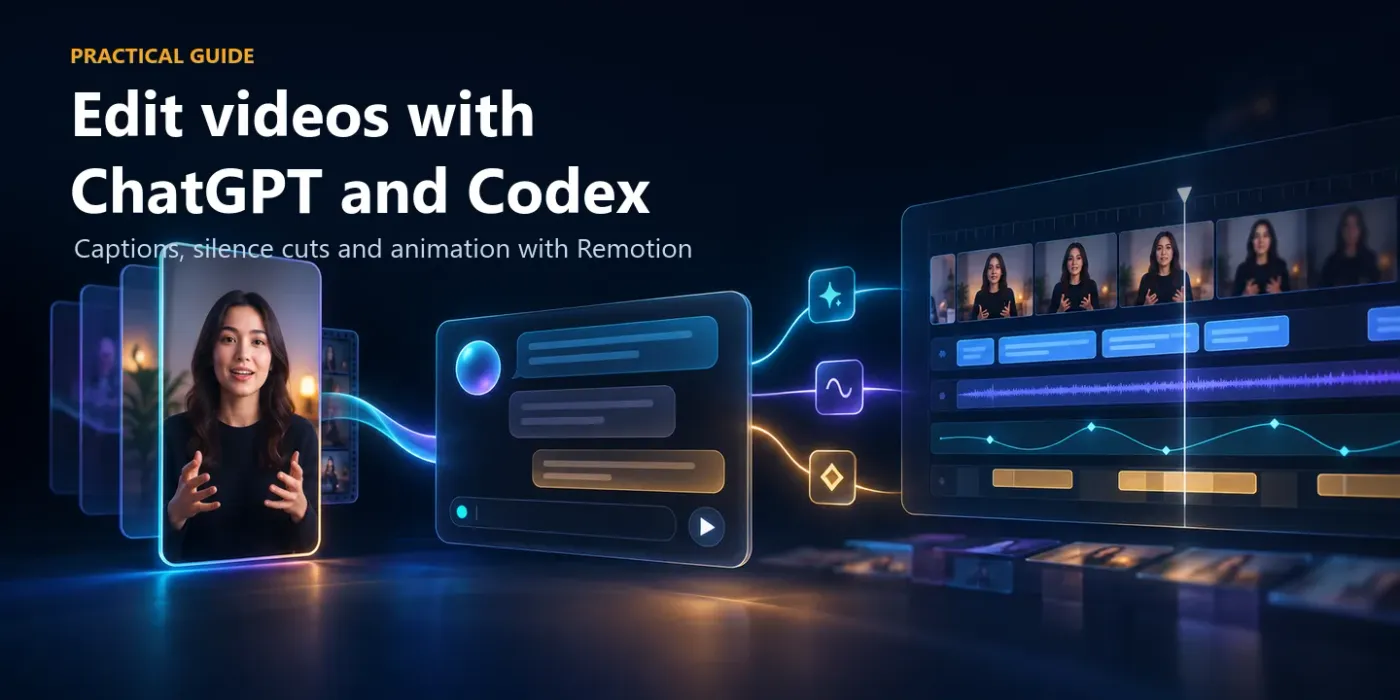
Codex can edit a talking-head video through a local, code-driven workflow. It inspects the media, transcribes the speech, proposes cuts, builds a Remotion composition, and renders a new video file. The work happens in Codex, not in a normal ChatGPT conversation. It is especially useful for Reels, Shorts, and explainers that need repeatable captions and precise cuts.
What Codex and Remotion do
Remotion defines video with React and code. Codex writes and revises that code from your instructions. Instead of dragging clips around a timeline, you describe the rules: which pauses to remove, how captions should look, when to punch in, and where to save the result.
This works well for repeatable edits that can be written as rules. It is less suitable for subtle color work, detailed audio mixing, or creative choices that depend on watching the whole performance and judging its emotional rhythm.
| Good fit | Less suitable |
|---|---|
| Removing silences and filler words | Generating footage or B-roll that does not exist |
| Timed captions with consistent styling | Studio-level color grading and audio mixing |
| Punch-ins, headlines, progress bars, and lower thirds | Human judgment about story and pacing |
| Vertical, horizontal, and batch versions | Recovering image information outside the original frame |
Before you start
- Use ChatGPT Desktop and switch to Codex.
- Create a project in a new folder. Do not work on the only copy of your source media.
- Install the Remotion plugin from the plugin directory if it is available for your account and workspace.
- Add the video, logo, font, or music files that you are allowed to use.
- Make sure the computer has enough free storage. Local transcription, packages, intermediate frames, and renders can use significant disk space.
- For Hebrew or another non-English language, use a multilingual transcription model. A model ending in .en is intended for English.
Plugin availability can vary by plan, account, region, and workspace policy. If Remotion is missing, check the plugin directory and your administrator's workspace settings.
Install the plugin and prepare the project
- Open ChatGPT Desktop and choose Codex.
- Open Plugins, search for Remotion, and select Install plugin.
- Create a project that points to an empty folder.
- Drag the source video into the folder or attach it to the task.
- Enable the Remotion plugin from Sources or accept it when Codex suggests it.
- Ask Codex to inspect the environment, explain what is missing, and install only the dependencies needed for this project.
Permission to run commands is not blanket permission. Read each request, make sure it belongs to the project folder, and reject changes you do not understand.
The complete video editing prompt
Replace the bracketed values. For Hebrew video, set the language to Hebrew and choose a multilingual Whisper model. For English, an English-only model may be appropriate if the local setup supports it.
Use the installed Remotion plugin and edit [SOURCE_FILE] for [PLATFORM].

Project safety:
- Work only inside the current project folder.
- Keep the source file unchanged.
- Explain any required install or download before running it.
- Reuse installed dependencies when possible.

1. Inspect the source video and report its duration, dimensions, frame rate, audio track, and orientation.

2. Transcribe the speech locally with word-level timestamps.
Language: [LANGUAGE].
Whisper model: [WHISPER_MODEL].
If that model is not available, stop and recommend the closest supported local model.
Do not send the media to an external transcription service.

3. Propose cuts for:
- silences longer than 0.6 seconds;
- standalone filler words such as "um" or "uh";
- obvious false starts that do not change the meaning.
Leave about 120 ms of room tone on each side of a cut. Do not change the spoken meaning and do not apply other audio processing.

4. Create captions in groups of 3 to 4 words. Avoid one-word caption pages unless a single word is intentionally emphasized. Use bold white sans-serif text, a black outline, and highlight the current word with [ACCENT_COLOR]. Keep captions inside safe margins and position them around 70% of the frame height.

5. Select up to 5 strong moments, at least 10 seconds apart. Prefer a clear number, claim, contrast, or punchline. For each moment, propose:
- a short headline under 24 characters;
- an 8% punch-in that eases in over 0.4 seconds and returns smoothly;
- a still frame for review.
Keep the speaker's face inside the safe area.

6. Output settings:
- size: [WIDTH]x[HEIGHT];
- frame rate: [FPS];
- video: H.264;
- audio: AAC;
- output path: outputs/[NAME]_edited.mp4.

Before the full render, give me:
A. the transcript with every proposed cut marked;
B. a table of cut start, cut end, reason, and remaining room tone;
C. the proposed headlines with timestamps;
D. still frames from the caption-heavy moments and every headline;
E. the estimated final duration.

Wait for my approval. Do not render the full video until I approve the transcript, cuts, headlines, and stills.
After approval, render the MP4, report its final duration and file size, and list any warnings.
The prompt is long because it prevents repeated questions and separates analysis, approval, and rendering. Increase the silence threshold for a slower edit. Leave more room tone if the cuts sound sharp.
The approval gate
Before you type "approve," check these points:
- Names, brands, numbers, and acronyms in the transcript.
- Cuts that begin or end in the middle of a breath.
- Headlines that add a claim the speaker did not make.
- Captions that sit inside the platform's safe area.
You can reply with a targeted correction:
Change the transcript at 00:31.2 from [WRONG TEXT] to [CORRECT TEXT].
Keep the pause from 01:04.8 to 01:05.5.
Replace headline 3 with: [NEW HEADLINE].
Move captions 60 px higher from 01:20 to 01:38.
Render new stills for those timestamps and wait for approval again.
Inspect the stills, open Remotion Studio when useful, and watch the complete MP4 once before posting. Codex can inspect frames and technical data, but it does not replace a continuous human review of the finished edit.
Follow-up prompts
Make a 30-second cut
Create a 30-second version from the approved edit.
Use only the 3 strongest moments. Include enough context before and after each moment so no sentence begins mid-thought.
Use hard cuts, keep the approved caption and headline style, and show me a cut list before rendering.
Render to outputs/[NAME]_30s.mp4 only after approval.
Make a 16:9 version
Create a 1920x1080 version of the approved full edit.
Keep the vertical source at full height. Fill the side areas with a blurred and darkened copy of the same video. Do not stretch the source.
Place captions at about 82% of the frame height with a maximum width of 1200 px. Place headlines around 14%.
Show stills from the busiest caption and headline frames, then wait for approval.
Render to outputs/[NAME]_16x9.mp4.
Add jump-cut punch-ins
Alternate the framing at each approved cut between 100% and 106% scale so the jump cuts feel intentional.
Keep the face inside the safe area and avoid changing scale during a sentence unless a cut occurs.
Render 6 representative stills and wait for approval before the full render.
Add a progress bar and lower third
Add a thin [ACCENT_COLOR] progress bar along the bottom safe area.
Add a lower third with [NAME] and [HANDLE]. Animate it in at 2 seconds and out at 6 seconds.
Check that it does not overlap the captions. Show stills at 2, 4, and 6 seconds before rendering.
Edit a batch of clips
Apply the approved edit style to every .mp4 file in source/.
Keep each source unchanged. Use the same caption typography, safe areas, silence threshold, and headline rules.
Create one approval table per clip and one summary table for all clips.
Wait for one combined approval, then render each file to outputs/ and report duration, size, and warnings.
Add music
Use [MUSIC_FILE] as the background track.
Start at [START_TIME], keep it at [LEVEL_DB] under the voice, and fade it out over the final [FADE_SECONDS] seconds.
Do not use automatic loudness changes on the spoken track.
Render a 20-second audio preview first and wait for approval.
How long the workflow takes
The first run is slower because the system may install packages, download rendering components, and prepare a transcription model. Later edits can reuse those files. Actual time depends on video length, hardware, transcription model, revision count, and output resolution.
Do not judge the workflow by how quickly the prompt can be typed. Measure the time until you have a version you can review and approve.
Common problems
| Problem | What to check |
|---|---|
| The edit sounds choppy | Increase the silence threshold or leave more room tone around cuts. |
| Names or numbers are wrong | Correct the transcript during the approval gate, before rendering. |
| Captions are clipped | Request safe margins and stills from the busiest frames. |
| The punch-in loses the face | Ask for face positioning or set a manual center point for that segment. |
| Rendering is slow | Check resolution, FPS, duration, system load, and render concurrency. |
| Vertical video looks poor in 16:9 | Choose blur fill, pillarbox, or crop. No tool can recover image information outside the original frame. |
Privacy, rights, and licensing
Local transcription can reduce media transfer to external services, but you still need to check which files, plugins, and services the project uses. Do not process sensitive footage until you understand the data path.
Use only music, fonts, logos, and footage you have the right to use. Remotion's license depends on the type of use and organization size. Check the official license page before commercial work or automated production at scale.
Official sources
Keep it for later
Take the guide with you
Save the complete guide to read and annotate offline, or print a copy to keep beside you while you work.
Keep reading

GuideAI
200 ChatGPT image and video shortcuts: my workflow
200 short requests for portraits, products, ads, branding and video. My guide covers defining shortcuts, using references and connecting Higgsfield.

GuideAI
AI marketing skills: a practical guide for Claude, ChatGPT and Codex
My guide to the Marketing Skills library: choose skills, install them in Claude and OpenAI environments, and build a marketing workflow with 9 prompts and factual checks.

ArticleAI
7 Stages to Build a Professional Website with Codex (Without the AI-Slop Look)
A practical 7-stage framework for turning an AI-built website from generic to genuinely on-brand, from defining the goal to polishing the final components.